

Burq Connect
Burq Connect is for merchants with platform, franchise, or marketplace structures where each location (or group of locations) is its own business entity.
Getting Started with Burq Connect
To set up Burq Connect:
- Reach out to your account manager or Burq customer support ([email protected]).
- Once Burq Connect is enabled for your account, you will see a new "Accounts" tab under your platform account (as shown below). This is where you'll create, view, and manage your connected accounts.
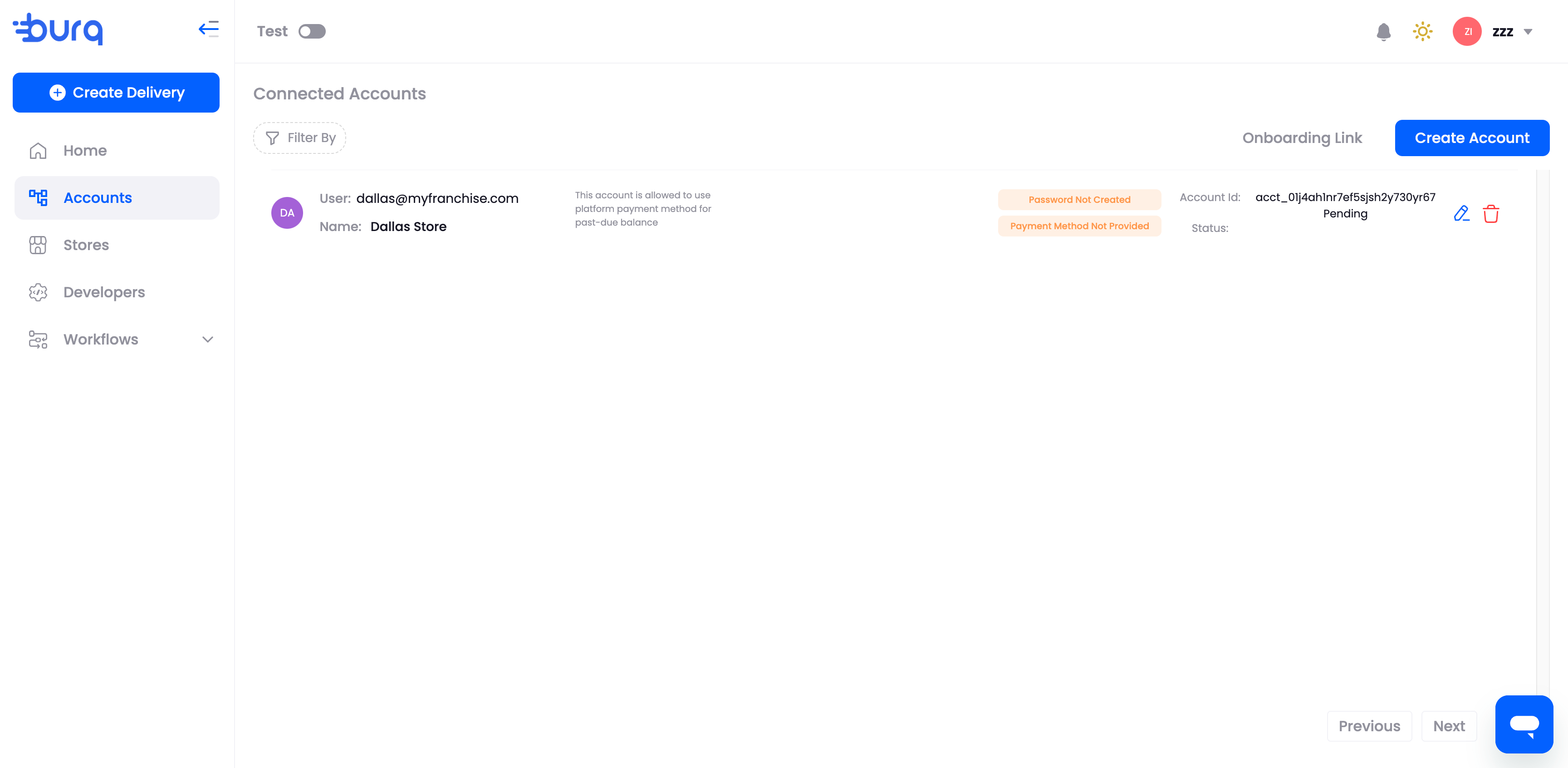
- Create connected accounts.
- For merchants with a few connected accounts, you can create them manually from the aforementioned dashboard screen. For merchants with a large number of connected accounts, you can create them using our Connected Account Invitations API.
- Set up the connected account creation experience.
- Once you've created connected accounts, set up the flow for those connected accounts users to create their Burq account. Burq offers a co-branded onboarding flow to let your connected users to setup their individual Burq Dashboard access and set a payment method. Your account manager will work with you to configure the onboarding experience (screenshot below).
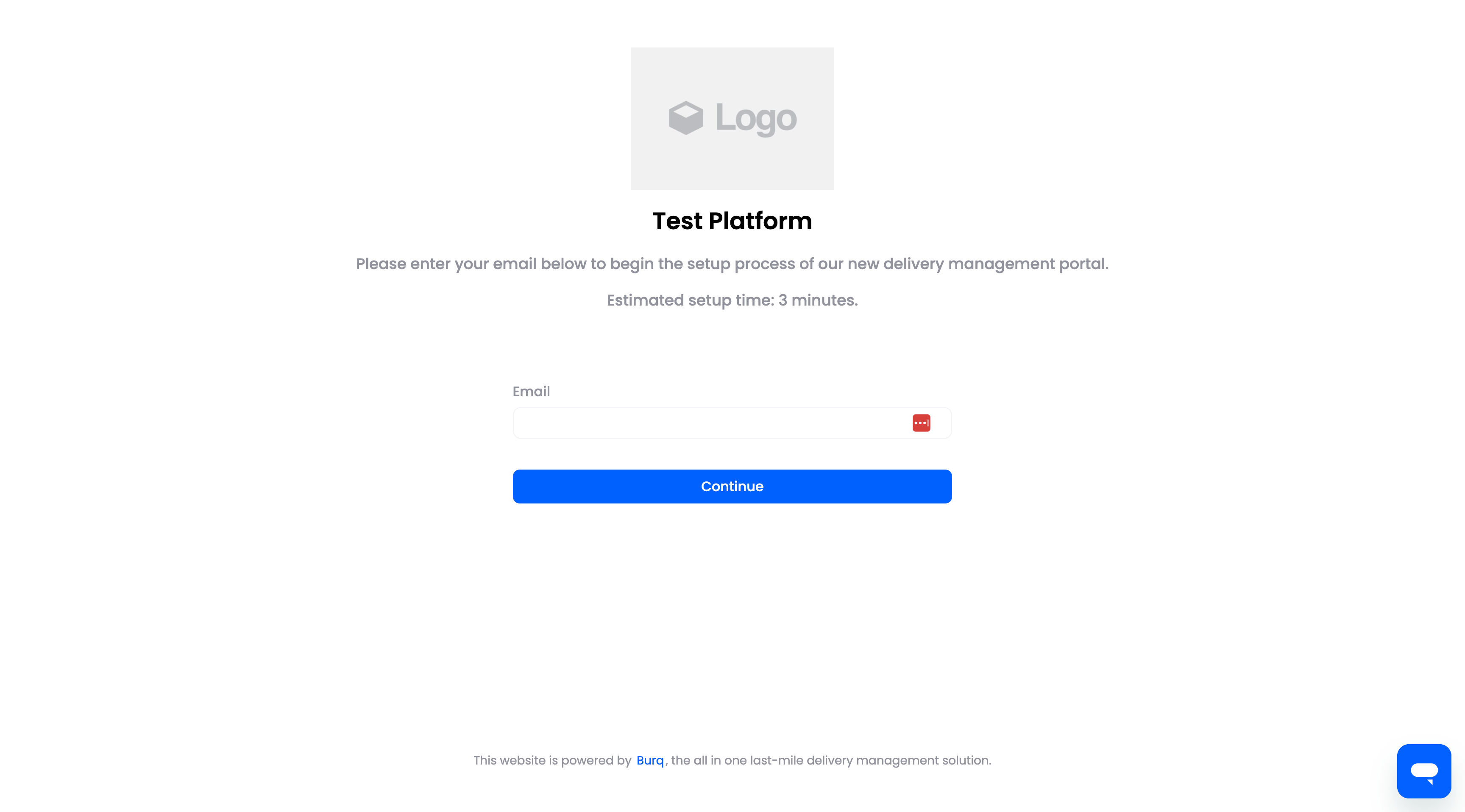
- Invite connected accounts to Burq
- Once the onboarding flow is configured, it's time to invite your connected users to set up their Burq account. You'll send them an onboarding link, which you'll get either via the Burq dashboard or API:
- Get onboarding link via Burq dashboard: on the Accounts page, copy the onboarding link near the top of the screen. This link is the same can be used for all connected accounts. To complete onboarding, each account will need to enter the email that you used to create the connected accounts.
- Get the onboarding link via API: get the onboarding link for each connected account from the response body of the Create Connected Account Invitation API. Each link is specific to a connected account, allowing your connected account users to skip entering their email during onboarding.
- Once the onboarding flow is configured, it's time to invite your connected users to set up their Burq account. You'll send them an onboarding link, which you'll get either via the Burq dashboard or API:
During account setup, which typically takes 3-5 minutes, connected accounts users will:
- set up a payment method, which will be used for all deliveries under their account
- set up a password for Burq dashboard access. After completing onboarding, users can log into the Burq Dashboard using their email and password.
Upon completing onboarding, Burq can redirect your connected account users to a url of your choice (e.g. a page in your platform), or simply display a confirmation message. Work with your account manager or Burq customer support to configure this.
Managing deliveries in connected accounts
Your connect users have full access to delivery management through the Burq Dashboard. They can create, reroute or cancel any delivery under their account.
Perhaps more importantly, using the platform account API key, you can create/cancel deliveries for any connected account on the platform by selecting a store under the connected account.
API merchants have two ways to create deliveries under a connected account.
- If you are using Burq Store feature, you can set the
store_idfield when creating quotes and deliveries to a store from any of your connected accounts. The delivery will be automatically created under the owner account of the store. - If you are not using Burq Store feature, you can set the
connected_account_idfield explicitly when creating quotes and deliveries.
Webhooks
Webhooks registered under the platform account will receive notifications for all delivery events from their connected accounts. Connected accounts do not have the ability to register their own webhooks at this time.
Limitations
Burq Connect is an evolving product and we're constantly adding support for new use cases. As of now, Burq Connect has the following limitations:
- Delivery providers are configured at the platform level. This means when we enable/disable a delivery provider, the change will applied to all connected accounts on the platform.
- SMS workflow is configured at the platform level. This means any changes to the workflow configuration will be applied to all connected accounts on the platform.
Updated 11 months ago