

Managing cancelled routes
To cancel a route that does not have a driver assigned, click the Route dropdown menu and select Cancel Route.
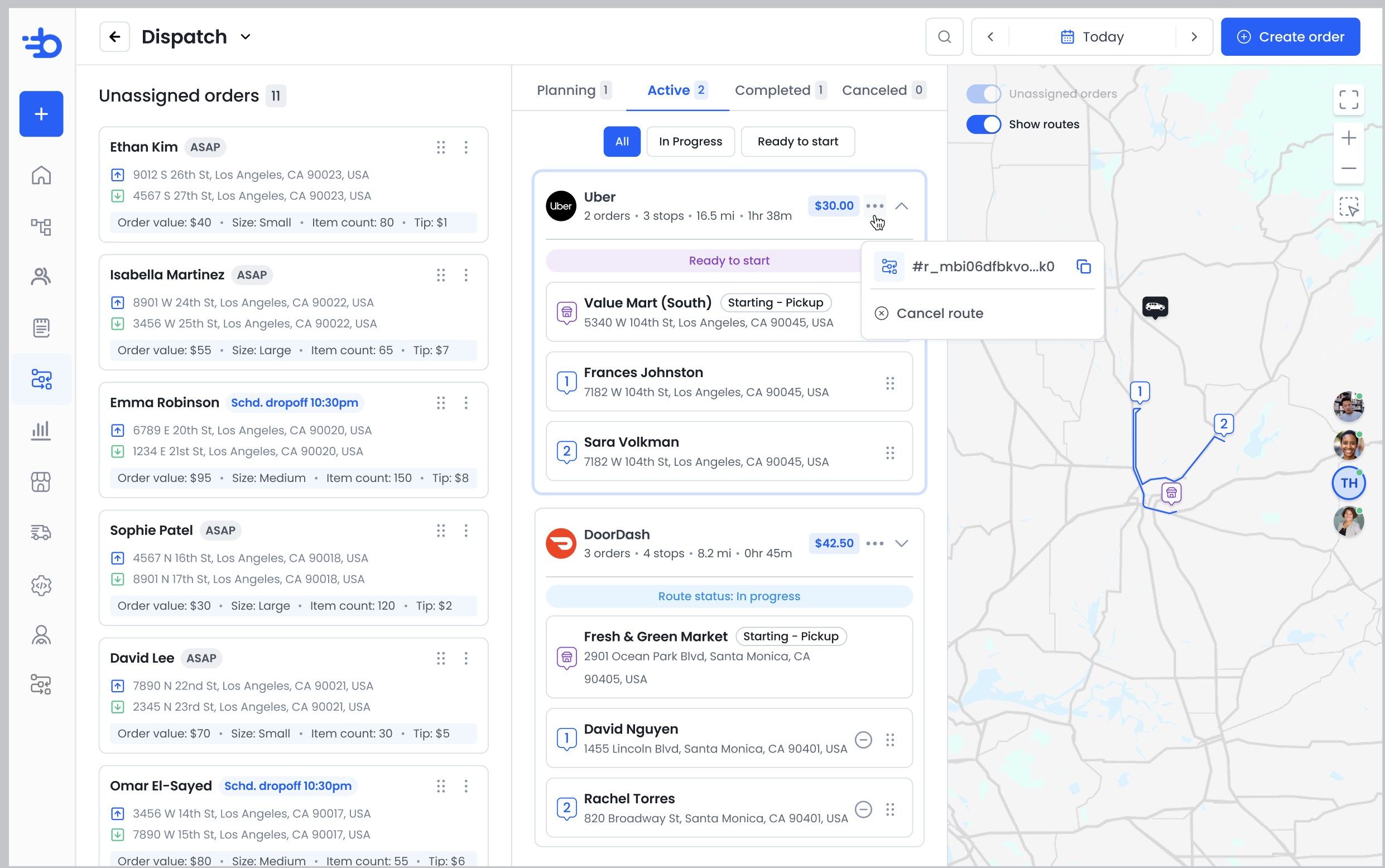
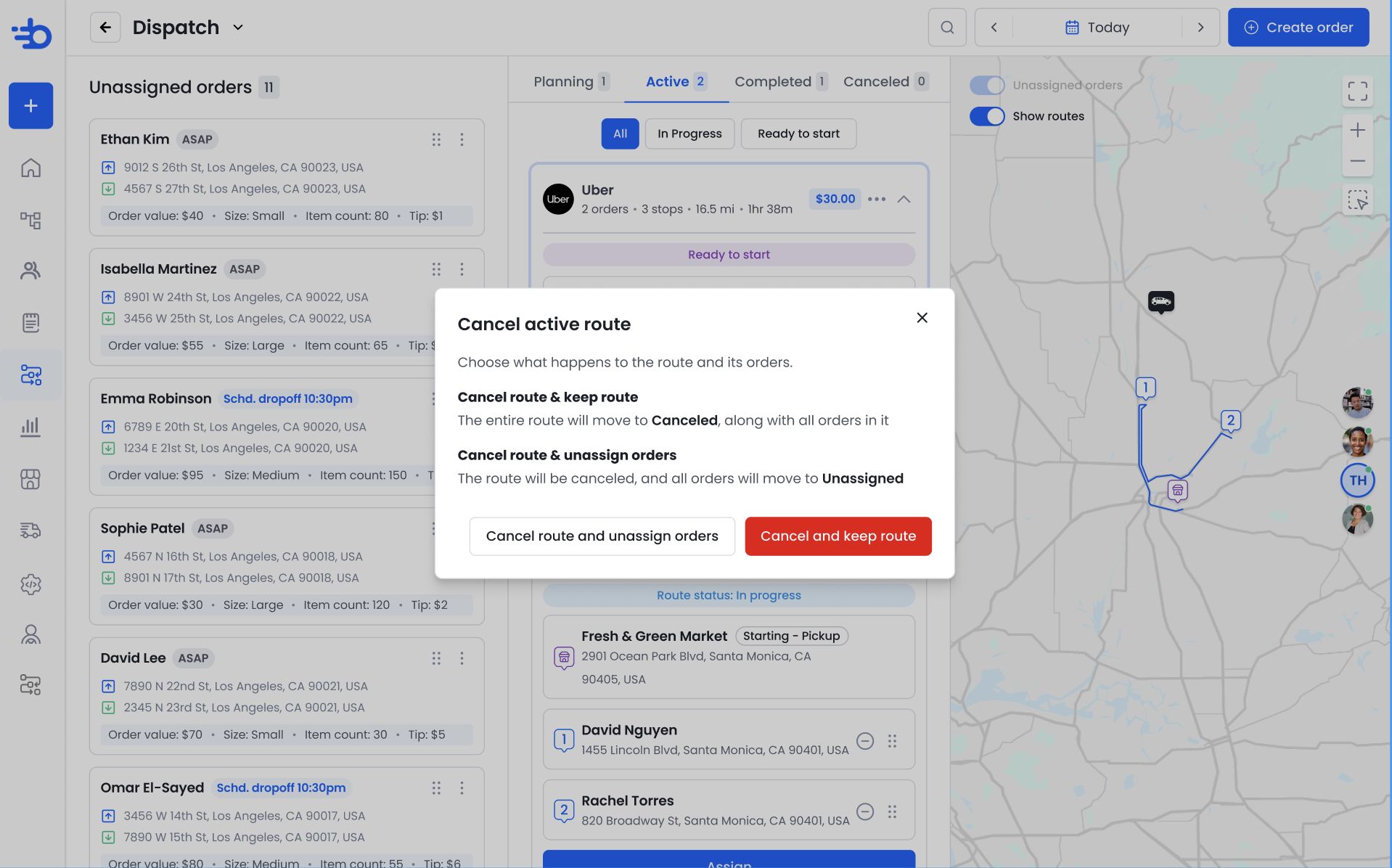
You’ll be prompted to choose between two options:
Cancel and Keep Route: Cancels the route while keeping the route configuration intact. The route will be moved to the Cancelled tab.
Cancel and Unassign Orders: Breaks the route into individual unassigned orders, allowing you to plan them again from scratch.
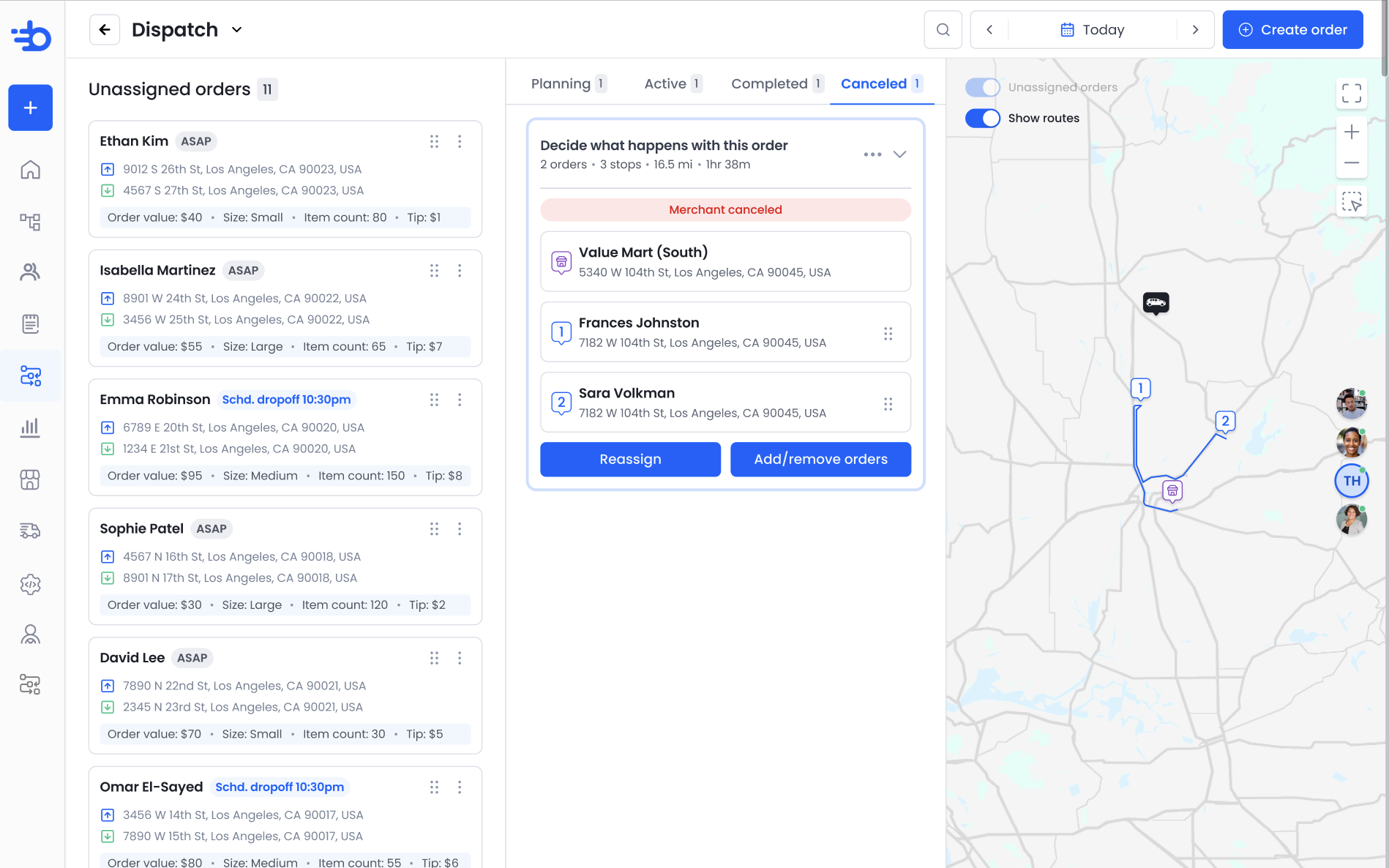
Routes will appear in the Cancelled tab when they are cancelled by either the merchant or the provider.
From here, you can:
Reassign: Manually reassign the orders to a new provider.
Add/Remove Orders: Add or remove orders from the route if you want to replan the route or include additional orders.
In both cases, the routes will be moved to planning tab.
Updated about 1 month ago