

Route CSV Upload
If you have a batch of orders that need to be dispatched to drivers as pre-planned routes, you can upload them all at once using a CSV file. This guide walks you through preparing your file, understanding which fields are required, and tracking the status of your upload.
Accessing the Feature
You can upload routes via CSV from two places in the dashboard.
From the Dispatch screen:
- Click on Dispatch in the left navigation bar.
- Click on Upload routes via CSV.
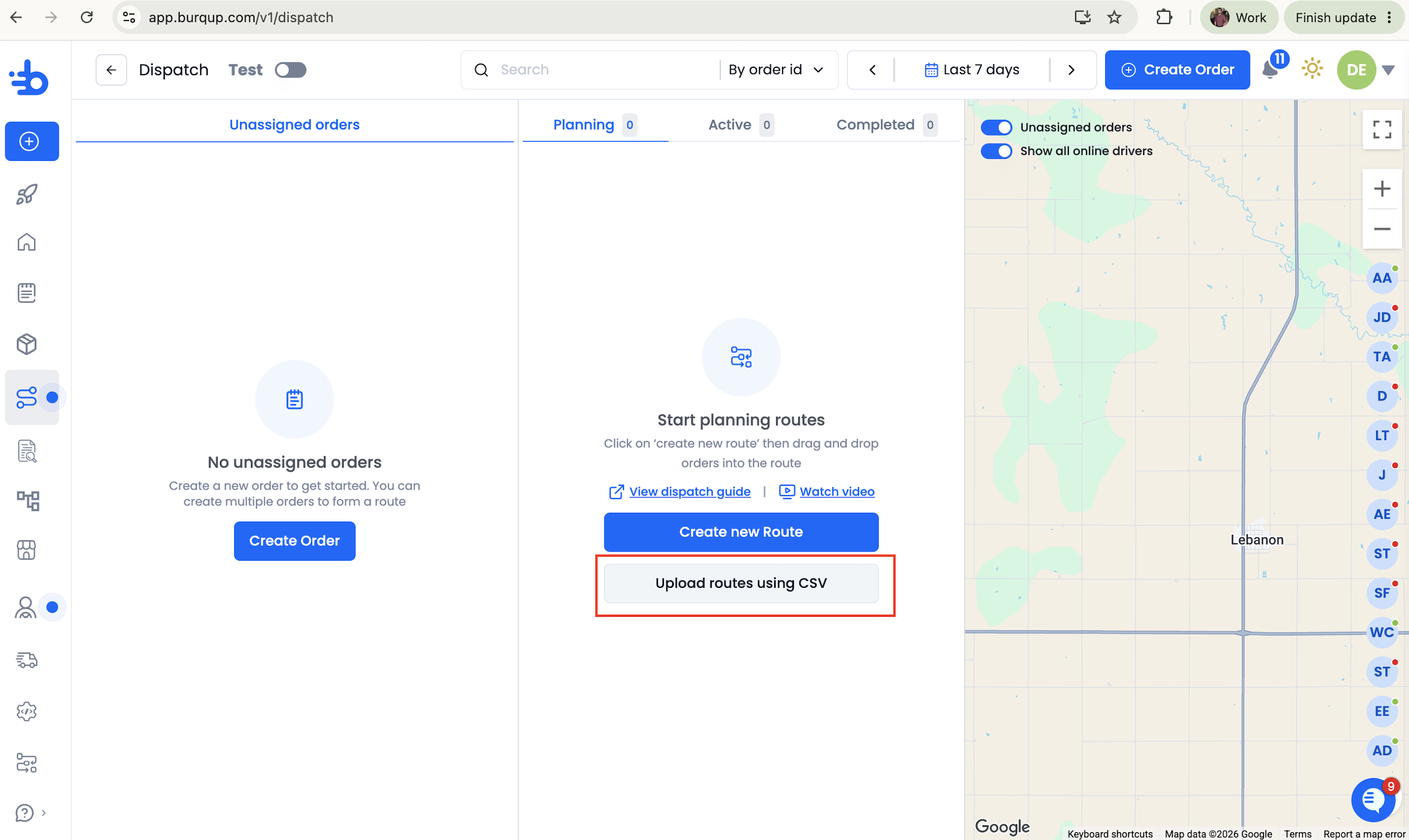
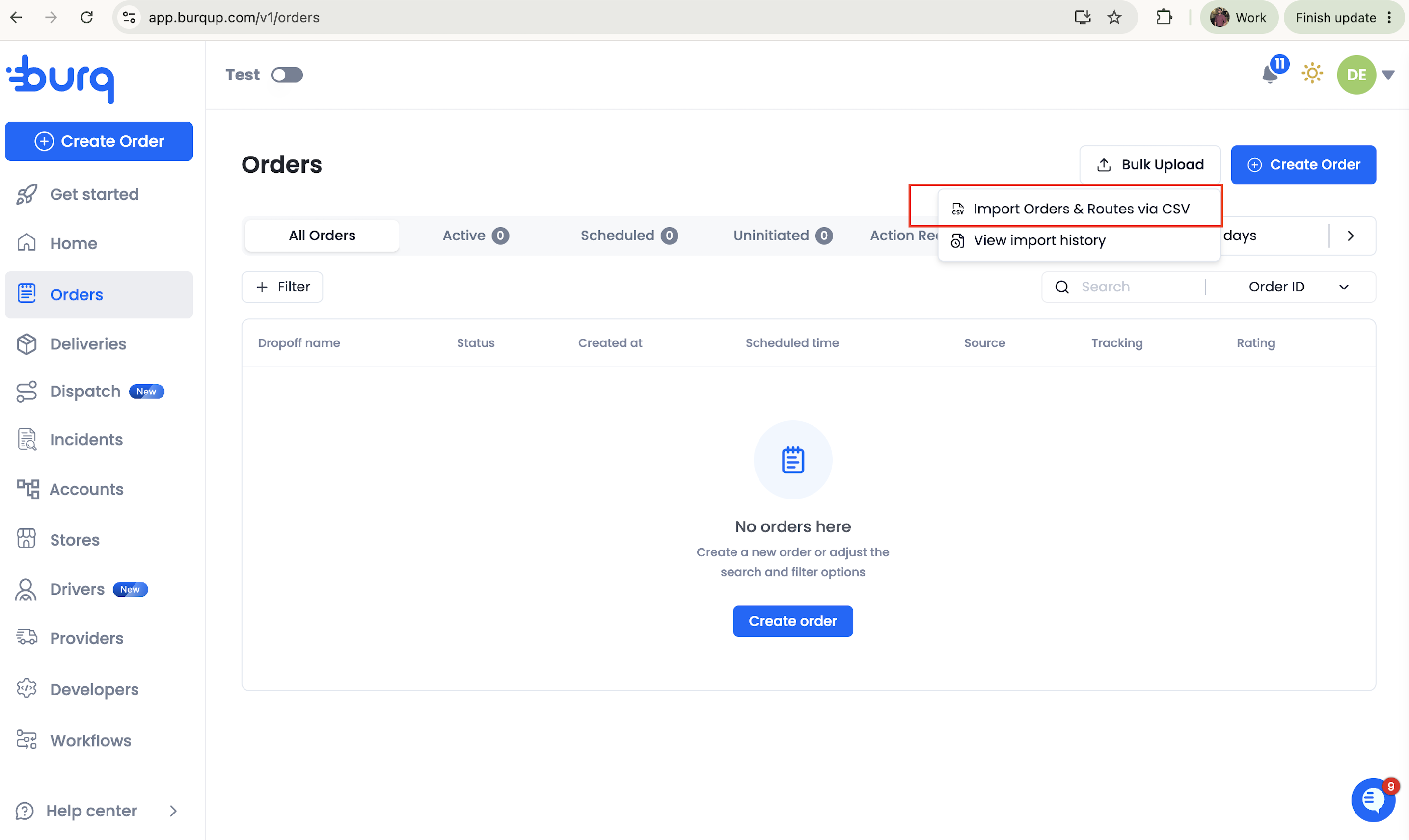
From the Orders page:
- Click on Orders in the left navigation bar.
- Click Bulk upload in the top-right area of the page.
- From the dropdown select Import Orders & Routes via CSV
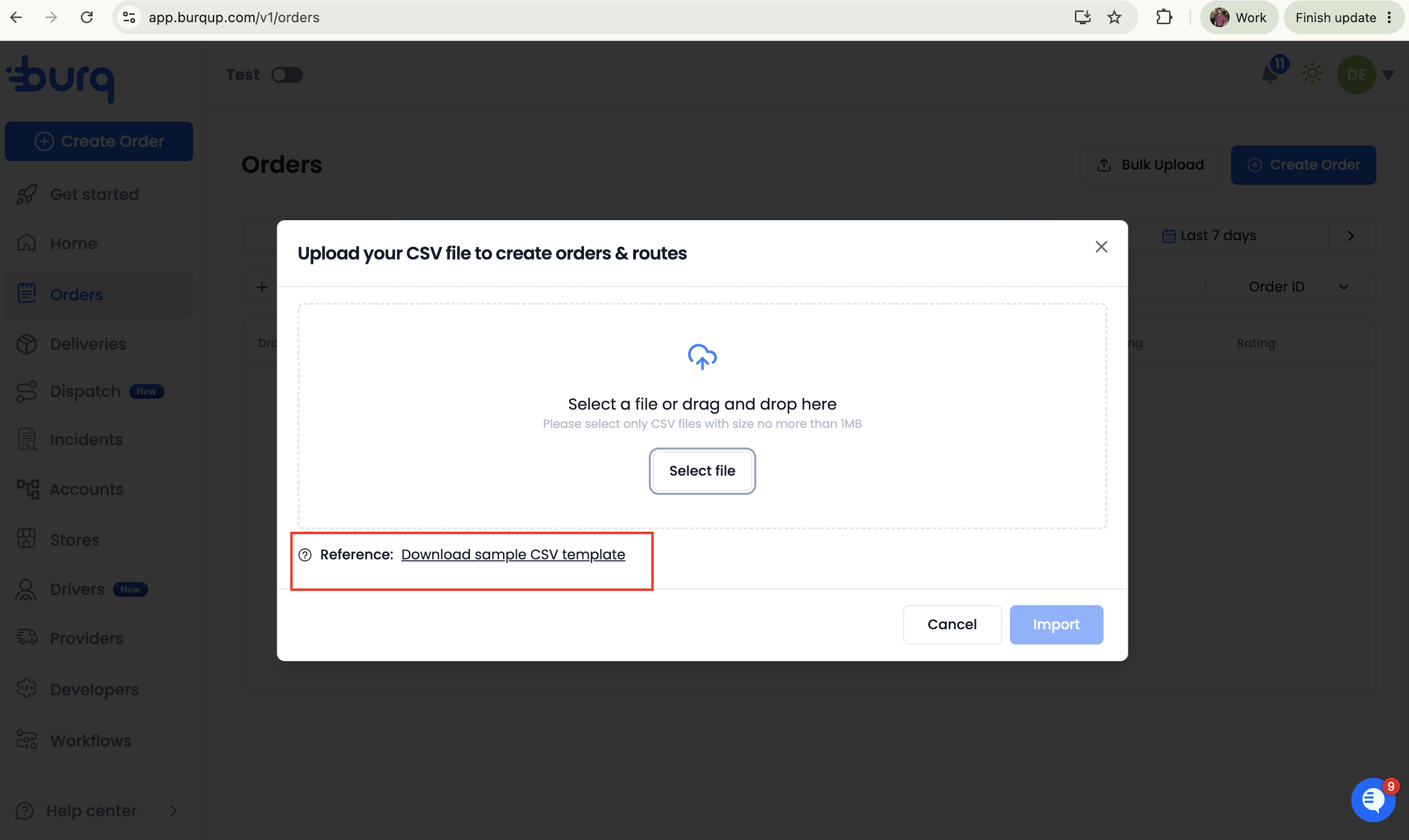
Download the Template
Before preparing your file, download the official Burq CSV template from within the upload modal by clicking Download sample CSV template. The header row must be present and columns must appear in the correct order — the file will be rejected if any header is missing or out of sequence.
- Dimensions template — uses numeric length, width, height, and weight fields for precise item and order dimensions. Required when dispatching to freight DSPs such as GoShare.
Note: Do not rename, reorder, or delete any column headers from the template. Even optional columns must remain in the file — leave them blank if unused.
CSV Field Reference
The table below covers every column in the standard template. See Route-Specific Fields for columns unique to those scenarios.
| Column | Required | Format / Example | Notes |
|---|---|---|---|
External Order Reference | Required | ORD-001 | Your identifier for this order. Rows that share the same value are treated as multiple items on a single order. |
Store ID | Conditional | store_abc123 | Burq store ID. When provided, pickup name, phone, and address are auto-populated from your saved store. Required if pickup fields are omitted. |
Pickup Name | Conditional | Acme Kitchen | Required unless Store ID is provided. |
Pickup Phone Number | Conditional | +13105550100 | Required unless Store ID is provided. |
Pickup Address | Conditional | 123 Main St, Los Angeles, CA 90001 | Full street address. Required unless Store ID is provided. |
Pickup At | Optional | 2025-09-15T14:00:00Z | ISO 8601 datetime. Leave blank for ASAP pickup. |
Pickup Unit Number | Optional | Suite 4B | Apartment or suite number at the pickup location. |
Pickup Notes | Optional | Use side entrance | Instructions for the driver at pickup. |
Dropoff Name | Required | Jane Smith | Customer name at the delivery address. |
Dropoff Phone Number | Required | +13105550199 | Customer phone number for delivery contact. |
Dropoff Address | Required | 456 Oak Ave, Los Angeles, CA 90002 | Full delivery address. |
Dropoff At | Optional | 2025-09-15T16:00:00Z | ISO 8601 datetime for scheduled dropoff. |
Dropoff Unit Number | Optional | Apt 2 | Apartment or unit at the delivery address. |
Dropoff Notes | Optional | Leave at door | Instructions for the driver at dropoff. |
Vehicle | Optional | car, van, truck | Preferred vehicle type. Affects which providers are shown. |
Order Value | Required | 49.99 | Declared value of the items in the order (USD). |
Tip Amount | Optional | 5.00 | Driver tip in USD. |
Item Name | Required | Box of produce | Description of the item being delivered. |
Item Quantity | Required | 2 | Number of units for this item. |
| Item Length | Conditional | 2.00 | Length of the item. Item-level dimension. If any one of Item (Length, Width, Height, Weight) is filled in for a row, all four must be filled in for that same row. Item-level dimensions and weight are optional if order-level dimensions and weight are provided or if AI dimension-estimation is enabled. Item level dimensions and weight take precedence over order level dimensions and weight. Uses the unit set in Dimension Unit. |
| Item Width | Conditional | 2.00 | Width of the item. Same rule as Item Length, required as part of the item-level group of four, otherwise optional if order-level dimensions and weight are provided or if AI dimension-estimation is enabled. |
| Item Height | Conditional | 2.00 | Height of the item. Same rule as Item Length, required as part of the item-level group of four, otherwise optional if order-level dimensions and weight are provided or if AI dimension-estimation is enabled. |
| Item Weight | Conditional | 2.00 | Weight of the item. Same rule as Item Length, required as part of the item-level group of four, otherwise optional if order-level dimensions and weight are provided or if AI dimension-estimation is enabled. Uses the unit set in Weight Unit. |
| Order Length | Conditional | 2.00 | Length of the order. Order-level dimension. If any one of Order (Length, Width, Height, Weight) is filled in, all four must be filled in. Required unless item-level dimensions and weight are provided or if AI dimension-estimation is enabled. Order-level dimensions should be the same for all rows sharing the same External Order Reference. |
| Order Width | Conditional | 2.00 | Width of the order. Same rule as order Length, required as part of the order-level group of four, otherwise optional if item-level dimensions and weight are provided. |
| Order Height | Conditional | 2.00 | Height of the order. Same rule as order Length, required as part of the order-level group of four, otherwise optional if item-level dimensions and weight are provided. |
| Order Weight | Conditional | 2.00 | Weight of the order. Same rule as order Length, required as part of the order-level group of four, otherwise optional if item-level dimensions and weight are provided. |
| Dimension Unit | Required | (in / cm) | Units of the dimensions added. Applies to all Length, Width, Height values (item and order level). Defaults to in if left blank. |
| Weight Unit | Required | (g / kg / lb) | Unit of the weight added. Applies to Weight values (item and order level). Defaults to lb if left blank. |
Contactless Delivery | Optional | true / false | Request a no-contact dropoff. |
Request Signature | Optional | true / false | Require recipient signature at dropoff. |
Test Mode | Optional | true / false | Marks orders as test deliveries. Must be the same value on every row in the file. |
Auto Initiate | Optional | true / false | Automatically dispatch orders to a provider after creation. Must be the same value on every row in the file. |
External Batch Reference | Optional | BATCH-2025-09 | Your identifier for a collection of routes. Used for grouping and reporting only. |
Route-Specific Fields
The three columns below tell Burq to group orders into a route. They work as a set — if any one of them is present on a row, all three must be provided. Leave all three blank on rows that should be created as individual orders rather than routes.
| Column | Required | Format / Example | Notes |
|---|---|---|---|
External Route Reference | Conditional | ROUTE-001 | Your identifier for this route. All orders that share this value in the same file are grouped into one route. |
External Stop Sequence | Conditional | 1, 2, 3 | Integer indicating the delivery order of this stop within the route. Lower numbers are served first. |
External Order Count | Conditional | 3 | The total number of orders in this route. Must be the same on every row that shares the same External Route Reference. Route creation triggers once this count is reached. |
Important: All orders for a route must be included in the same CSV file. If the actual row count for a route reference does not match the declared
External Order Count, the entire file is rejected. Splitting a route across multiple uploads is not supported.
Example: A 3-Stop Route
The rows below show how three orders are linked into a single route. Each row carries the same External Route Reference and External Order Count, and a unique External Stop Sequence.
| External Order Reference | External Route Reference | External Stop Sequence | External Order Count |
|---|---|---|---|
ORD-001 | ROUTE-001 | 1 | 3 |
ORD-002 | ROUTE-001 | 2 | 3 |
ORD-003 | ROUTE-001 | 3 | 3 |
Uploading Your File
- From Dispatch, click Upload routes via CSV. From Orders, click Bulk Upload.
- Select your file. Click Select file or drag and drop your CSV onto the upload area. The file must be 1 MB or smaller and use the
.csvextension. - Click Import. Burq validates the file structure immediately. If any required headers are missing or a route validation rule is violated, the upload is rejected before processing begins and an error message is shown.
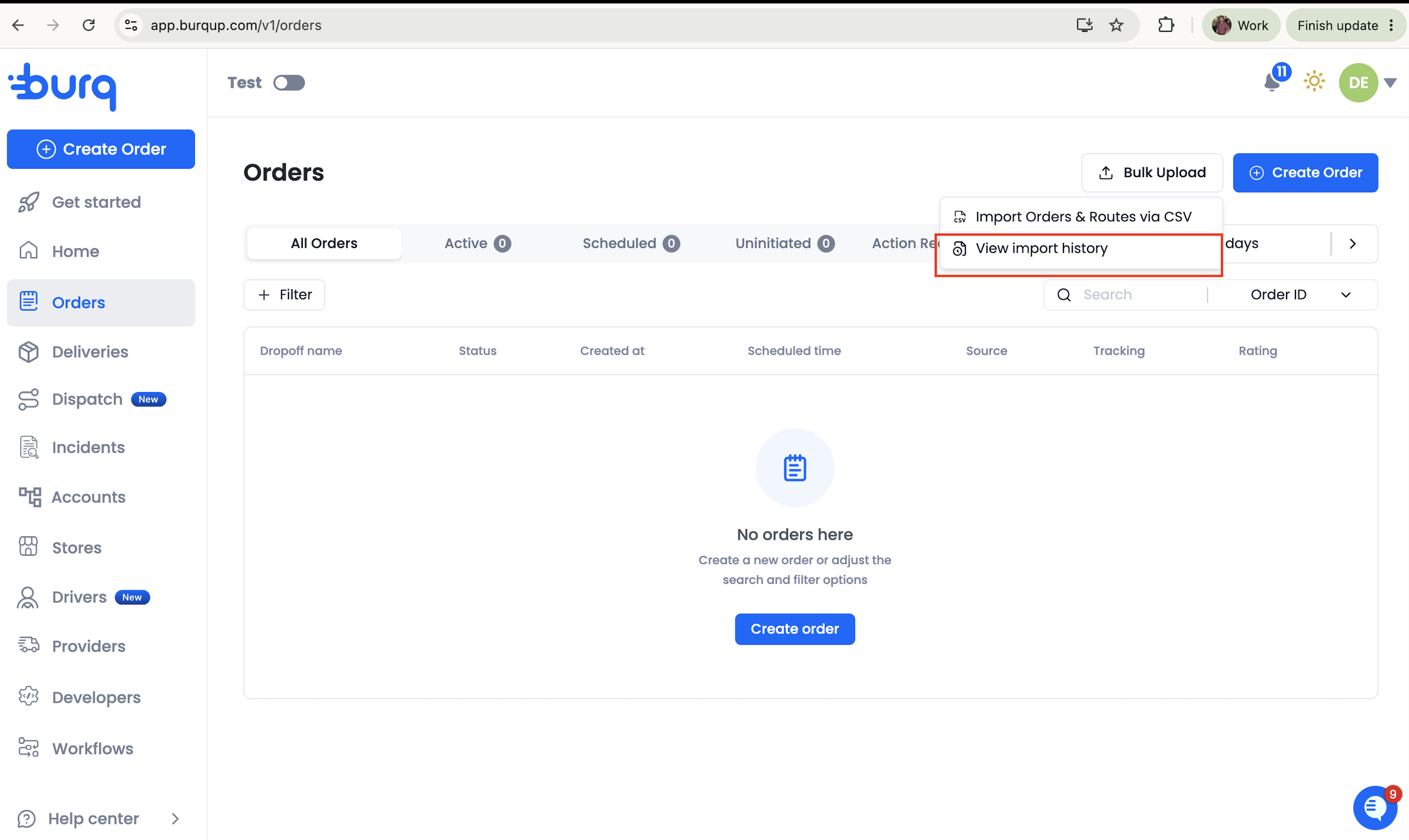
- Monitor processing. Once accepted, orders are created row by row in the background and routes will be created. Click View import history (via the same dropdown) to track progress and review any row-level errors.
Tracking Upload Status
Each upload creates an import job you can monitor from the Import history view. Click View import history from the Dispatch dropdown or the Orders page to see all past uploads.
| Status | Meaning |
|---|---|
in_progress | Orders are still being created in the background. |
completed | All rows processed successfully. |
failed | One or more rows could not be processed. Click the job to see row-level error details. |
Successfully created orders appear immediately in the Dispatch Unassigned Orders list. Once all orders for a route are processed, the route is created automatically and visible under Planning.
Error Reference
| Error | Cause | Fix |
|---|---|---|
missing_csv_header | One or more column headers are missing, misspelled, or out of order. | Re-download the template and copy your data into it without modifying the header row. |
missing_column_value | A required field is blank on a row. The error message names the specific column(s). | Fill in the missing values and re-upload. |
route_ref_order_count_mismatch | Rows sharing an External Route Reference declare different values for External Order Count. | Ensure every row in a route carries the same External Order Count. |
route_ref_rows_mismatch | The actual row count for a route reference does not match the declared External Order Count. | Check that all orders for the route are in the file and the count is correct. |
missing_dimensions | The dimensions template is active but no dimensions were provided for an order. | Add at least one complete set of dimensions (all four fields) to the order's first row. |
incomplete_order_dimensions | Only some of the four order-level dimension fields were provided. | Provide all four — Order Length, Order Width, Order Height, and Order Weight — or leave all blank. |
incomplete_item_dimensions_csv | Only some of the four item-level dimension fields were provided. | Provide all four item dimension fields or leave all blank. |
dimension_level_mismatch | Order-level dimensions were provided on a subsequent row of the same order (not the first row). | Order-level dimensions may only appear on the first row of each order. |
invalid_dimension_unit | The value in Dimension Unit is not recognised. | Use one of: in, cm, or ft. |
invalid_weight_unit | The value in Weight Unit is not recognised. | Use one of: lb, kg, or oz. |
cannot_parse_csv | The file could not be read as a valid CSV. | Open the file in a spreadsheet app and re-save it as plain CSV (UTF-8 encoding). |
Updated 2 months ago